


8. The configuration menu#
The configuration menu can be accessed from the top left corner of the MecaPortal
window,  . It features the following sections:
Robot information, such as the serial number and the complete version number of the firmware;
Help, primarily links to documentation, the support website, and to the legacy web interface;
Network configuration, such as entries of the IP address of the robot or the netmask,
Joint limits, for reducing the joint ranges;
Work zone limits and collision configuration, for preventing self-collisions and defining a work zone;
Variables management (creation, deletion or modification of robot persistent variables);
Update firmware, for upgrading (or downgrading) the firmware of the robot;
Get logs and backup, for downloading a complete backup (robot logs, persistent configuration data, programs, etc.) or the latest robot logs only;
Keyboard mapping, for listing all and changing certain keyboard shortcuts;
Joystick mapping, for assigning robot jogging directions to joystick axes.
For example, when using the SpaceMouse for Cartesian jogging, it is particularly helpful to assign the axes of the SpaceMouse so that they are aligned with the axes of the WRF as shown in Figure 6. Jogging in Cartesian mode, with the WRF option selected, becomes extremely intuitive.
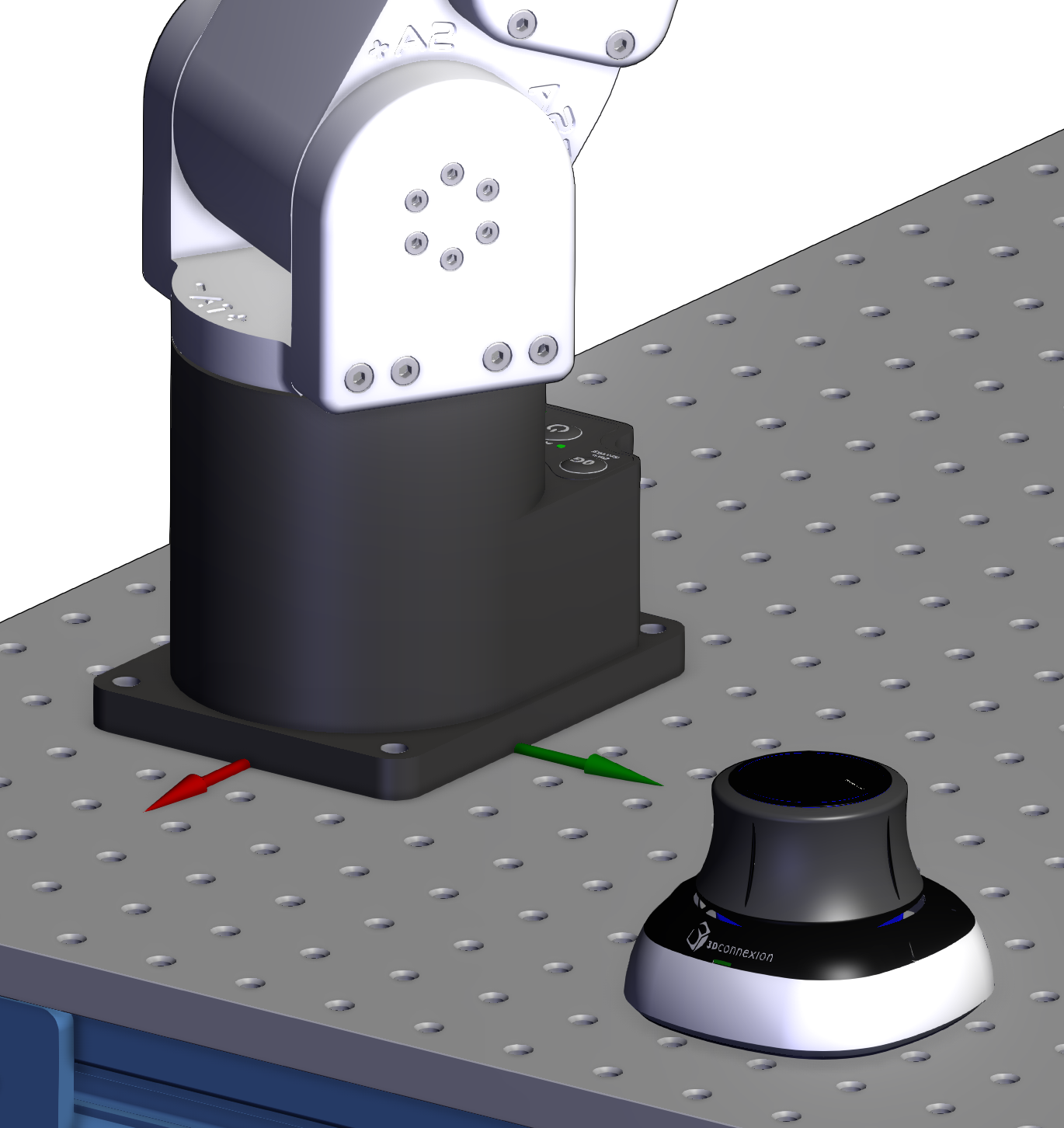 (a) Example of the relative placement of the SpaceMouse with respect to the WRF
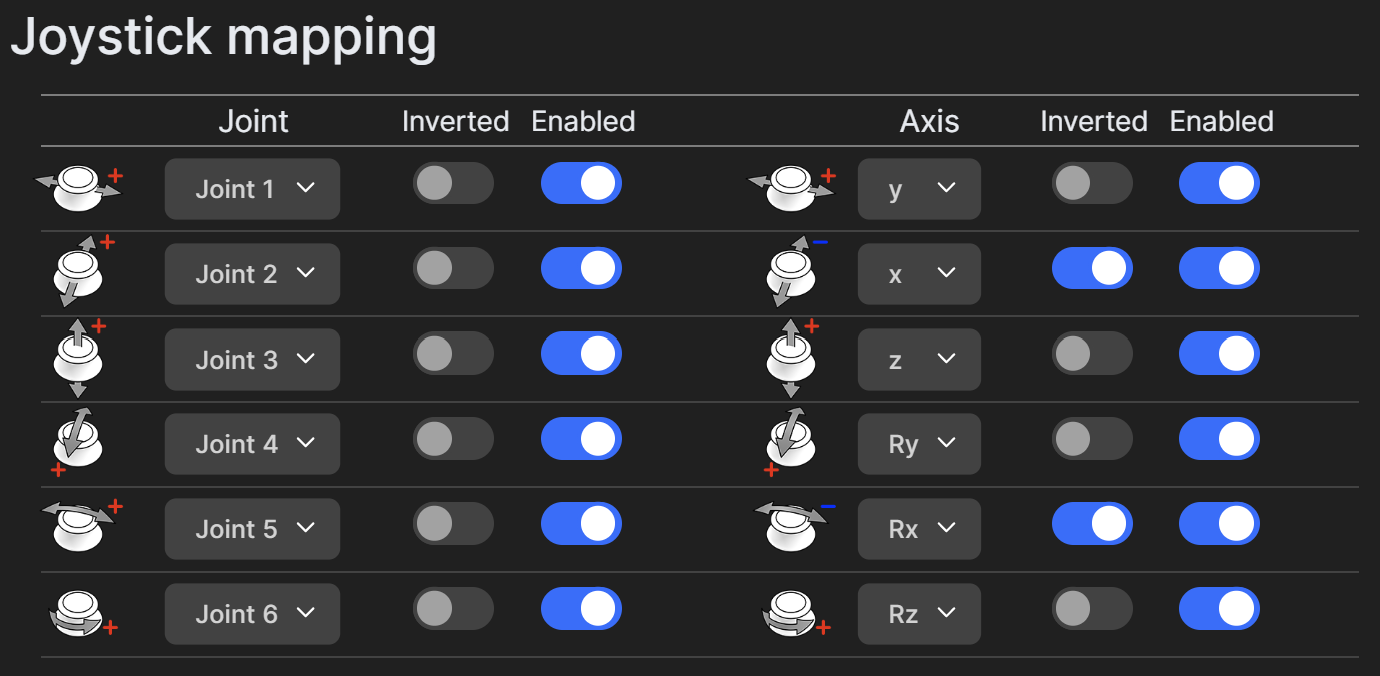 (b) The changes that must be made in the configuration menu
Figure 6 Example of configuring the axes of the SpaceMouse#