


2. Overview#
The following figure shows the main elements of the MecaPortal web interface. These are:
The menu bar
The code editor panel
The jogging panel
The 3D view panel
The log panel
You can show/hide each of the four panels from the button
 , in the menu
bar.
, in the menu
bar.
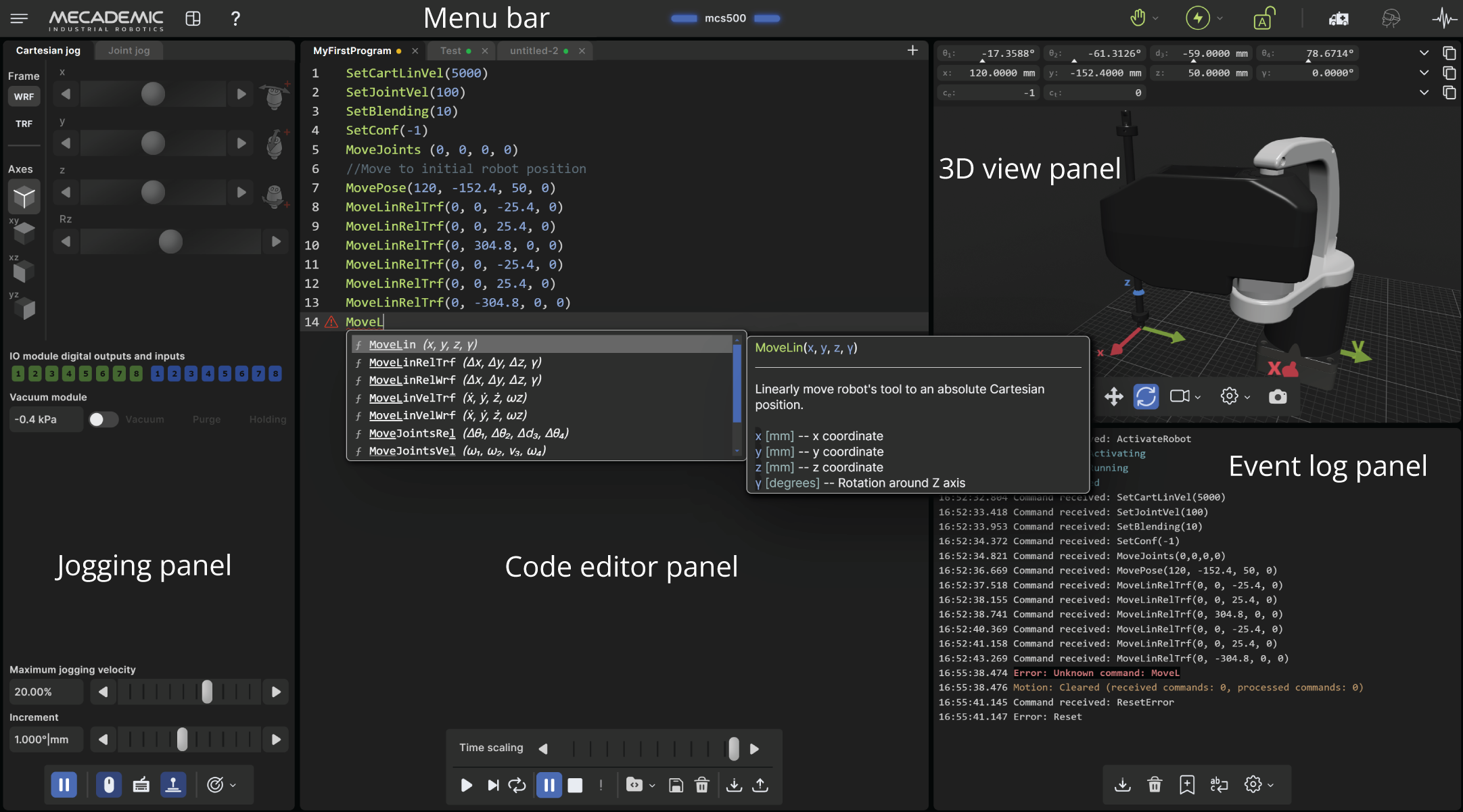
Figure 1 Overview of the MecaPortal#
2.1. The menu bar#
From left to right, the menu bar features
The configuration menu button,

The panels show/hide menu button,
The show/hide tooltips button,

The robot name surrounded by state bars (see Table 1)
The connection state selector,
 (disconnect) or
  (monitoring) or
  (control)
The robot state selector,
 (deactivate) or
  (activate)
or
(activate)
or  (home)
The recovery mode button,

The simulation mode button,
The end-of-arm tooling state icon,
Note
Until you get to know the MecaPortal, we recommend that you activate the tooltips
using the button , in the menu bar. Most tooltips are disabled by default.
Visual state |
Explanation |
|---|---|
Gray, solid |
The robot is deactivated. |
Yellow, solid |
The robot is activated but not homed, or is in recovery mode but not moving. |
Yellow, blinking |
The robot is in recovery mode and executing motion commands. |
Green, solid |
The robot is homed. |
Green, blinking |
The robot is homed and executing motion commands. |
Blue, solid |
The robot motion is paused. |
Red, blinking |
The robot is in error mode. |
2.1.1. The connection and robot state selectors#
Normally, once the web user interface is loaded, you have not only established an HTTP
connection with the robot, but also activated the socket messaging which is the only
communication channel between the web interface and the robot. By default, the web
interface connects to the robot in monitoring mode only (as seen in
Connection state button). To control the robot click on the
icon and select . If the robot is in error when you
connect to the robot, the connection state button will show a red blinking
 icon. You can still press that button and select to only monitor or
control the robot. The monitoring option can be used to see in real-time the motion of
the robot when another client (e.g., another MecaPortal, a Python program, or a PROFINET
application running on a PLC) is controlling the actual robot.
icon. You can still press that button and select to only monitor or
control the robot. The monitoring option can be used to see in real-time the motion of
the robot when another client (e.g., another MecaPortal, a Python program, or a PROFINET
application running on a PLC) is controlling the actual robot.